If you have ever thought, I know the assignment is somewhere, I just cannot find it, you are not alone. In my years as a teacher and academic advisor, the students who looked “most organized” were rarely the ones with the fanciest apps. They were the ones with a simple, repeatable system that captured three things every time: where the file lives, when it is due, and what to do next.
This is the digital organization system I recommend when you are juggling multiple classes, multiple platforms, and multiple deadlines. You can often set it up in an afternoon, and many students maintain it in about 10 minutes per week once it is running.

The three-part system (files, dates, plan)
Think of digital organization like a tripod. If one leg is missing, everything wobbles.
- Cloud storage is your filing cabinet. It answers: “Where is it?”
- Your calendar is your deadline engine. It answers: “When is it due?”
- A weekly planner is your action list. It answers: “What am I doing today, and in what order?”
The key is that each part has a job. Your calendar should not be stuffed with file links you never open, and your folders should not be used as a to-do list. Separation makes the system easier to maintain.
Step 1: Build a folder structure that stays consistent
Pick one cloud home base and commit to it for the term. Google Drive, OneDrive, Dropbox, iCloud, or Notion all work, but the best choice is the one you will open automatically on any device.
The folder template
Create a main folder for the term and duplicate this structure for each class.
School
  2026 Spring
    01 - BIO 102 (Professor Lastname)
      Syllabus
      Weekly Materials
      Assignments
      Labs or Problem Sets
      Exams
      Grades and Feedback
    02 - ENG 210 (Professor Lastname)
      ...
Why the numbers? They keep classes in the same order everywhere, including on your phone. Your brain should not have to “search” for your class each time.
Naming rules that save you later
- Date first for anything tied to a deadline:
2026-02-12 Lab 3 Draft. - One topic phrase for study materials:
Cell Membranes Notes. - Version control with simple tags:
Draft,Final,Submitted.
If your instructor uses an LMS (Canvas, Blackboard, Schoology), download or save key documents the first week and place them in your folders.
Quick caveat: Treat the LMS as the official source for the most current instructions and the official submission location. Use your cloud folder as your working space and personal archive, so you are not dependent on a single platform or a broken link.

Step 2: Turn the syllabus into deadlines
Your syllabus is not just a document. It is a schedule contract. The biggest organization win you can get in the first week is converting every due date into calendar events with reminders that match how you actually work.
Calendar setup in 15 minutes
- Create one calendar per term (or one per class if you prefer color-coding).
- Add all known due dates as events (not tasks) with a clear title:
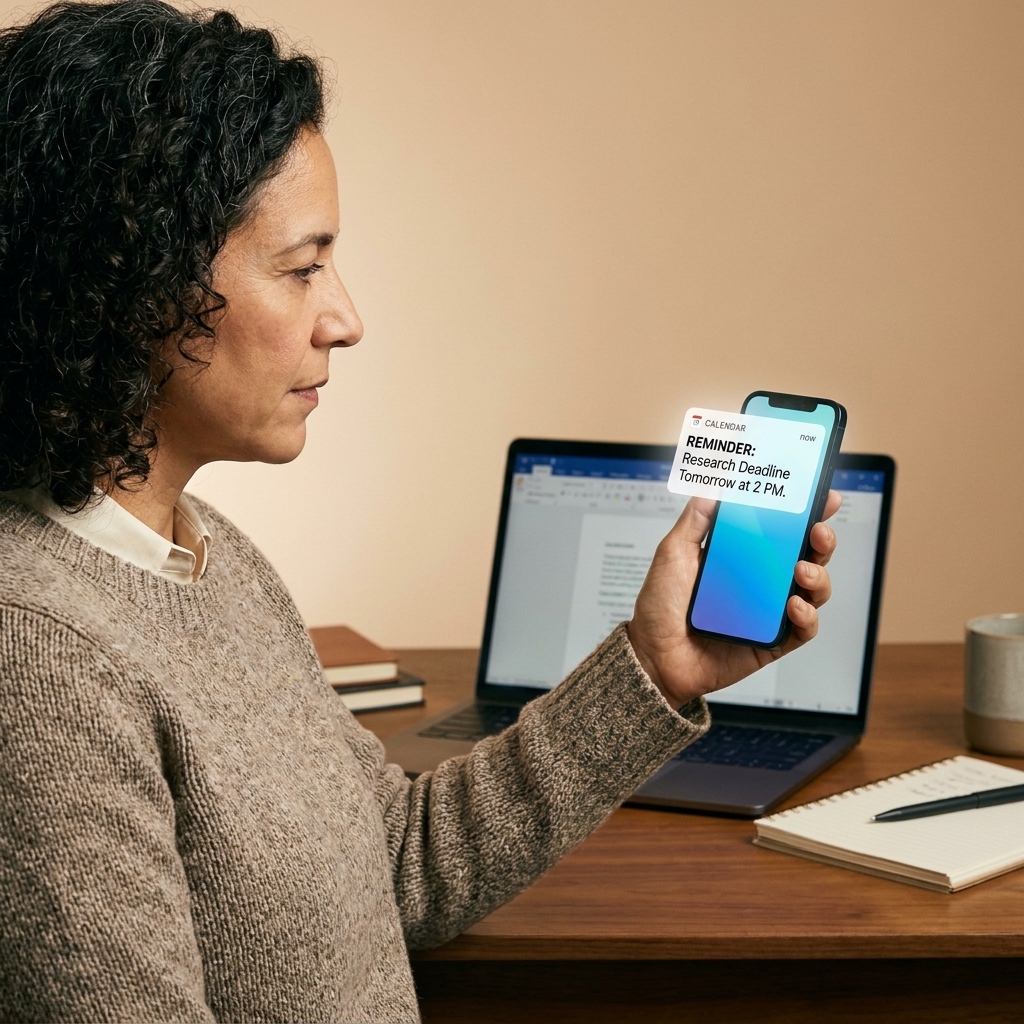
BIO 102: Lab 3 Due. - Add reminders. I like two to three reminders for most students, one “start” reminder and one “submit” reminder. For higher-stakes items, add an extra checkpoint.
If your calendar app blurs events and tasks, use whatever it reliably notifies you about. The point is getting alerts you will actually see.
My go-to reminder timing
- Small homework (15 to 45 minutes): 24 hours before, and 2 hours before.
- Essays or projects: 7 days before (start), 3 days before (draft checkpoint), and morning-of (submit).
- Exams: 14 days before (study plan), 7 days before, 2 days before.
If you use Google Calendar, add the assignment link in the event description, but only after the file has a permanent home in your cloud folder.
Mentor note: Put the due date on the calendar even if you think you will remember it. Memory is a terrible organizational system when stress shows up.
Step 3: Add a weekly planner
Your calendar shows what is due. Your planner shows what you will do. Without a planner, students tend to work in “panic bursts,” which feels productive but often misses smaller, ongoing tasks like reading, review, and early drafts.
Choose a planner format that fits
- Digital notes app (Notion, OneNote, Apple Notes): great if you like checklists and linking.
- Task manager (Todoist, TickTick, Microsoft To Do): best for recurring tasks and quick capture.
- Calendar-based planning (Google Calendar blocks): best if you need structure and realistic time estimates.
Whatever you choose, keep the planner lightweight. If it takes longer to maintain than to do the assignment, you will stop using it.
The Weekly Reset (10 minutes)
I recommend doing this on Friday afternoon or Sunday evening.
- Open your calendar and look 14 days ahead.
- List deliverables for each class (papers, quizzes, problem sets, labs, discussion posts).
- Break big items into 3 to 5 actions you can complete in one sitting.
- Assign actions to specific days based on your real schedule.
- Buffer time for tech issues and life: at least one “catch-up” block each week.
Example for a paper due next Thursday:
- Mon: choose sources (45 min)
- Tue: outline (30 min)
- Wed: write draft (90 min)
- Thu: revise and submit (60 min)

Multiple platforms, one system
Many students have a professor who emails PDFs, another who lives inside Canvas, and another who posts assignments in a shared Google Doc. Your system needs a single “truth” so you are not hunting across five places.
The one-truth rule
- Files live in your cloud folders.
- Deadlines live on your calendar.
- Actions live in your weekly planner.
When something changes, update the “truth,” not just the platform. If a due date shifts, adjust your calendar. If new instructions are posted, save the updated version (or a note pointing to it) in your assignment folder so you are not working from an old copy.
Quick capture when you are on the go
If you notice an assignment update between classes, do not trust yourself to remember. Add a quick note to your planner like: ENG 210: confirm rubric update. Then handle it during your next study block.
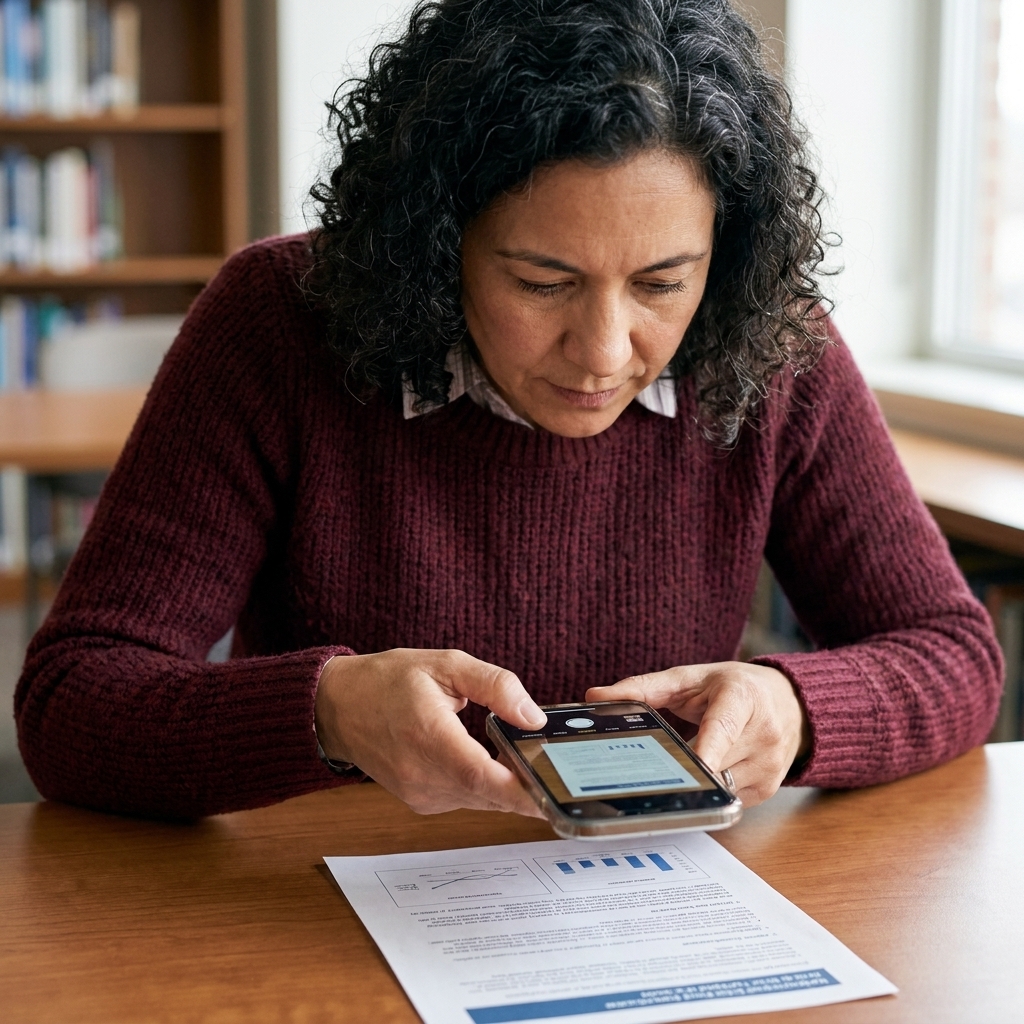
Scanning paper handouts
Even in 2026, paper appears. A signed lab sheet. A returned quiz. A rubric handed out in class.
- Use a scanning app (Microsoft Lens, your phone’s built-in scan feature, or the scan feature in the Google Drive mobile app).
- Save to the correct class folder immediately.
- Name it with the same convention:
2026-03-02 BIO 102 Lab Safety Sheet.
This is especially helpful if you need documentation later for accommodations, grade questions, or transferring credits.
Maintain it in minutes
Daily: the 2-minute check
- Open your planner and pick your top 1 to 3 tasks for today.
- Glance at the calendar for anything due in the next 48 hours.
- Open the folder for the class you are starting first. Reduce friction.
Weekly: the 10-minute reset
- Clear downloads and move files into the right folders (or into your
00 - Inboxfor sorting later). - Confirm upcoming deadlines match the LMS and any class announcements.
- Plan work sessions for large assignments before they become emergencies.
If you miss a week, do not scrap the system. Just restart with the next reset. Consistency beats perfection.
Security, backups, and versioning
A good system also protects your work.
- Turn on two-factor authentication (2FA) for your school and cloud accounts.
- Be careful with sensitive info (medical documents, IDs, financial info). Store it only where your school recommends, and avoid sharing it through open links.
- Use version history when your cloud app offers it. If you delete something or overwrite a paragraph, you can often restore an earlier version.
- Export key finals (final papers, major projects) as PDF and keep them in your term folder. It is a simple way to preserve formatting and “final” status.
Group projects without chaos
Group work is where good systems go to die, unless you choose a shared “home” on purpose.
- Create a shared folder for the project with clear subfolders:
Notes,Drafts,Final,Sources. - Decide the source of truth: one doc everyone edits, or one person compiles sections into a master file.
- Use simple naming rules:
2026-04-10 Proposal Draft (Alex)so no one overwrites anyone else.
Low-tech and accessibility options
If you prefer paper or you have limited device access, the same system still works. Use a paper planner for the weekly plan, a printed “due dates” page from your calendar, and one consistent folder structure for files whenever you are on a campus computer.
Troubleshooting
“I have the folders, but I still forget assignments.”
Folders do not create urgency. Make sure every due date is on your calendar with at least one early reminder. Then add “start tasks” to your planner, not just “submit tasks.”
“My professor changes deadlines constantly.”
Use the calendar as your single source of truth and update it the moment you hear the change. If changes are frequent, add a recurring weekly task: Check announcements for each class.
“I keep saving things to Downloads and never filing them.”
Create a folder called 00 - Inbox inside your term folder. Save everything there from your phone or laptop. During your weekly reset, empty it into the correct class folders.
“I use multiple devices and files do not match.”
This is a cloud sync issue more than an organization issue. Choose one cloud provider, sign in on every device, and avoid editing the same file offline on two devices at once. When in doubt, rename your working file with a date to prevent overwriting.
Quick start checklist
- Create your term folder and class subfolders.
- Download and save each syllabus to the correct
Syllabusfolder. - Enter every due date you can see into your calendar with reminders.
- Choose your weekly planner tool and schedule a Weekly Reset time.
- Create a
00 - Inboxfolder for quick capture. - Turn on 2FA for your accounts.
You do not need a perfect system. You need one you can run when you are tired, busy, and trying to remember which tab has the rubric. Start simple, keep it consistent, and let your system carry the mental load so you can focus on learning.
FAQ
What is the best app for organizing classes?
The best app is the one that connects cleanly to your daily habits. Most students do well with a combo: Google Drive or OneDrive for storage, Google Calendar or Outlook for deadlines, and a simple task list for weekly planning. If you already have an LMS, treat it as the classroom, not the filing cabinet.
Should I keep one folder per class or one folder per week?
Start with one folder per class. It is more intuitive when you need to find something quickly. Inside each class, you can store weekly materials in a Weekly Materials folder if your course is organized that way.
How far ahead should I plan?
Put all known due dates in the calendar immediately, then plan one to two weeks ahead in your weekly planner. That window is long enough to prevent surprises and short enough to stay realistic.
What if my syllabus is vague or missing due dates?
Add what you can, then create placeholder events for likely weekly items (readings, quizzes, discussion posts). As soon as the professor confirms specifics, update the event details and reminders.