
In high school, it is rarely the work itself that sinks students. It is the system. Assignments live in five different places, due dates change, and somehow the night you planned to study is also the night your group project meets.
I write this from the perspective of a study coach who helps teens build routines that actually hold up during busy weeks.
The right apps cannot do the work for you, but they can absolutely reduce friction. Think of them as digital routines: one place to track tasks, one place to store notes, and a few tools that make practice actually stick.

Below are 15 reliable homework and study apps I recommend to teens and families, including what each one does best and who it is most helpful for. Note: pricing and free tiers change often, so treat any “free” label as “may have a free version” and double-check the current plan before you commit.
How to pick your app mix
If you try all 15 at once, you will end up with 15 unfinished setups. Instead, choose a simple stack and stick with it for two weeks.
- Start with a home base. One app for tasks and due dates.
- Add one learning tool. Flashcards, practice problems, or note review.
- Add one focus tool. A timer or blocker if distractions are a challenge.
- Check school rules. Some districts limit AI tools or require specific platforms.
- Keep privacy in mind. For parents: check what accounts your student is creating, what data is shared, and whether the device is school-managed.
My default recommendation: a planner app + a note app + a flashcard app. Everything else is optional.
Best starter stacks
- Simple and familiar: Google Calendar + Google Drive + Quizlet
- All-in-one dashboard: Notion + Google Calendar + Anki
- ADHD-friendly and low-friction: myHomework + Google Keep + Forest (or Freedom if you need stronger blocking)
10-minute setup checklist
- Add classes. Create one class list (or one project per class) inside your home-base app.
- Add the big dates. Tests, quizzes, major papers, performances, sports, work shifts.
- Add reminders that repeat. Example: “Planner update” weekdays after school, and “Weekly review” on Sunday.
- Make tasks smaller. For any project, add the next 2 to 3 steps, not the whole mountain.
- Pick one weekly reset. A short Sunday plan keeps the rest of the week from drifting.
15 essential homework and study apps
1) Google Calendar
Best for: time management and seeing your week at a glance.
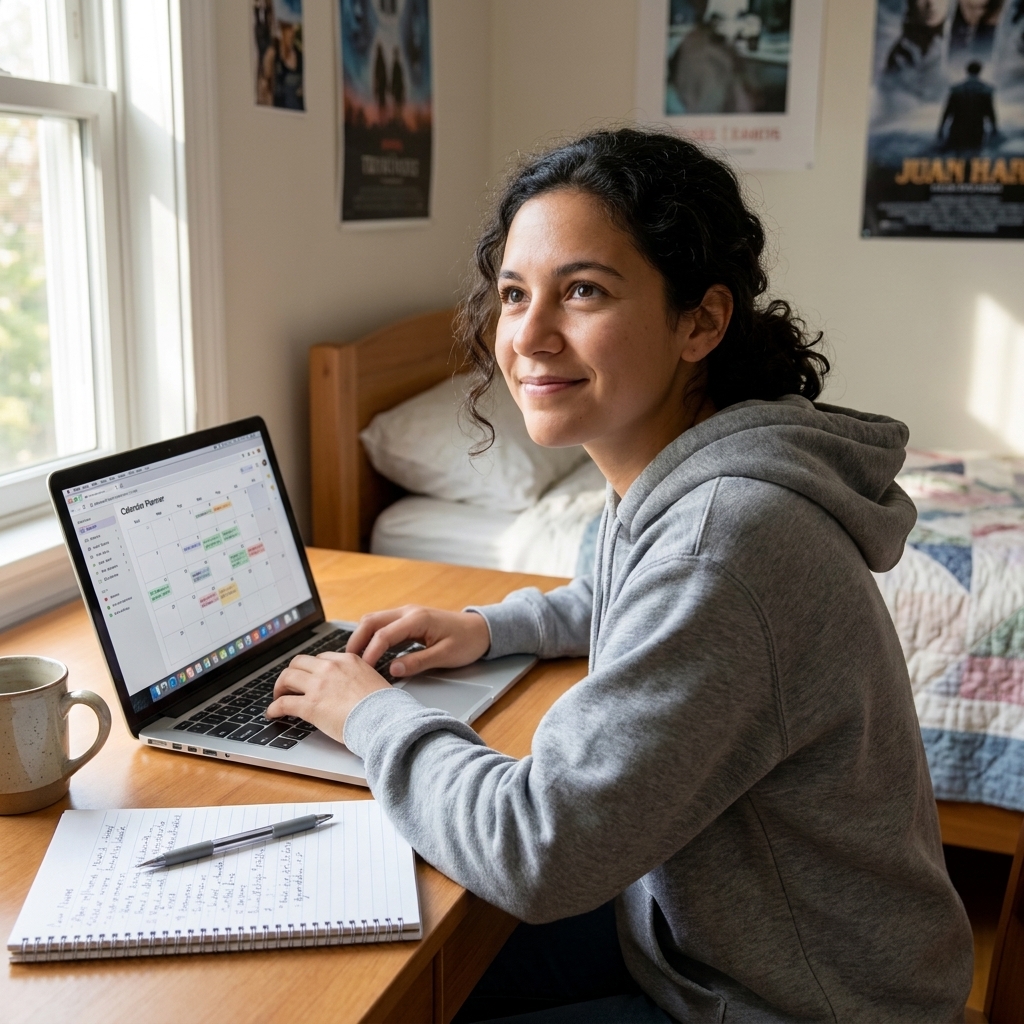
Google Calendar is one of the simplest ways to reduce “I forgot” moments. Put in big due dates, test days, practices, and work shifts. Then add 2 to 3 short study blocks before major assessments.
- Standout features: recurring events, reminders, color coding, easy sharing with family
- Good to know: Works well on phones and school Chromebooks through the web.
- Tip: Create a calendar called “School” so personal plans do not get buried.
2) myHomework Student Planner
Best for: tracking assignments by class in a student-friendly layout.
This one feels like a traditional student planner, just easier to search and update. Great if your school uses multiple platforms and you want one consistent place to track what is due.
- Standout features: class schedule, homework list by due date, reminders
- Good to know: Free and paid options vary by platform and features.
- Tip: Enter your class rotation first. The rest becomes much faster.
3) Todoist
Best for: students who like checklists and clear priorities.
Todoist is powerful without being complicated. It is especially helpful for breaking big projects into smaller steps and labeling what is truly urgent.
- Standout features: subtasks, priority levels, recurring tasks, quick add
- Good to know: Some advanced features may require a paid plan depending on current pricing.
- Tip: Use a project called “This Week” and move only the next actionable steps into it.
4) Notion
Best for: organized students who want everything in one dashboard.
Notion can be a planner, a notes hub, and a project tracker. It is a favorite for students who enjoy customizing pages and templates.
- Standout features: databases, templates, shared pages for group projects
- Watch-out: Setup can become a procrastination trap. Keep it simple at first.
- Good to know: AI features are typically an add-on and may not be included in the free plan.
5) Google Keep
Best for: quick capture, reminders, and simple checklists.
Google Keep is a sticky-note app that can save overwhelmed students. It is perfect for: “Ask Ms. Lee about the rubric,” “Bring poster board,” or “Study vocab list.”
- Standout features: labels, pinned notes, voice notes, photo notes
- Good to know: Syncs easily if your student already uses a school Google account.
- Tip: Make one checklist called “School bag” for the morning rush.
6) OneNote
Best for: students who want a digital binder by subject.
OneNote shines when you need to store handouts, typed notes, and images together. Many students like it because it feels like tabs in a binder: notebook, section, page.
- Standout features: notebooks by class, handwriting support, audio notes
- Good to know: Common in schools that use Microsoft 365.
- Tip: Create a “Test Review” section for each class to keep study materials in one spot.
7) Evernote
Best for: research-heavy classes and students who clip resources.
Evernote is strong for saving articles, organizing sources, and searching across notes quickly. If you do lots of reading and writing, it can become your research library.
- Standout features: web clipper, tags, fast search
- Good to know: Evernote’s free tier has changed over time, so check current limits before relying on it long-term.
- Tip: Tag notes by unit name (like “Bio Unit 3”) so review time is painless.
8) Quizlet
Best for: vocabulary, terms, dates, formulas, and quick review.
Flashcards work best when you use them consistently and actively. Quizlet makes it easy to build sets, study on the go, and review with different modes.
- Standout features: flashcards, practice tests, study modes
- Good to know: Some study modes and analytics may be part of a paid plan.
- Tip: Add an example sentence or picture clue for every new vocab word.
9) Anki
Best for: serious long-term memorization (AP, IB, language learning).
Anki uses spaced repetition, which is a research-backed method for remembering more with less cramming. It is not flashy, but it is extremely effective.
- Standout features: spaced repetition scheduling, custom card types
- Good to know: Platform and pricing can differ (for example, desktop vs mobile), so check what applies to your device.
- Tip: Keep cards atomic. One question, one answer.
10) Khan Academy
Best for: step-by-step math and science practice, plus test-prep fundamentals.
This is one of the most trusted free learning platforms available. When a concept is shaky, short lessons and targeted practice can rebuild confidence quickly. Khan’s standardized test resources can shift over time, so search their current test-prep sections if SAT-style practice is a goal.
- Standout features: mastery-based practice, short videos, skill tracking
- Good to know: Works well on web and mobile, which matters for Chromebook-heavy schools.
- Tip: Use it after you miss problems. Do not wait until the night before the test.
11) Photomath
Best for: checking math steps and finding where you went off track.
Used responsibly, Photomath can be a solid tutor. The key is to treat it like a mirror, not a shortcut. Compare your work to the steps and fix your misunderstanding. Note: step-by-step explanations and topic coverage can vary by problem type and plan.
- Standout features: step explanations, multiple solution methods (when available)
- Good to know: Some features may be limited in the free version.
- Tip: After checking, redo a similar problem without the app.
12) Grammarly
Best for: catching grammar errors and improving clarity in essays.
Grammarly helps students edit more independently. It is especially useful for students who know what they mean but struggle to polish the final draft.
- Standout features: grammar and spelling checks, clarity suggestions, tone guidance
- Good to know: Advanced style suggestions may be paid, and schools sometimes restrict extensions on managed devices.
- Tip: Make changes intentionally. If you do not understand a suggestion, look it up.
13) Forest
Best for: staying focused with a simple timer and visual motivation.
Forest turns focus time into something you can see. You set a timer, and as you work, a tree grows. If you leave the app, your tree withers. For many teens, that little bit of accountability is enough to stay on track.
- Standout features: focus timer, session history, gentle accountability
- Good to know: Pricing varies by platform, and iOS is often a paid app.
- Tip: Pair 25 minutes of focus with a 5-minute break, then repeat.
14) Freedom
Best for: blocking distracting apps and websites during homework.
If willpower is not enough, a blocker can be a game-changer. Freedom lets you create schedules so the block starts automatically when you normally study.
- Standout features: cross-device blocking, scheduled sessions, custom block lists
- Good to know: Freedom is typically a paid subscription tool, so confirm the current plan and trial options.
- Tip: Block only your top 3 distractions first. Too many blocks can backfire.
15) Google Drive (Docs, Slides, Sheets)
Best for: keeping schoolwork organized and accessible anywhere.
Google Drive is a quiet helper for high school success. When students stop losing files and can work from any device, stress drops. It is also one of the most common and easiest ways to handle group projects, especially in Google-based schools.
- Standout features: auto-save, version history, sharing and comments
- Good to know: School accounts may have storage limits or sharing restrictions.
- Tip: Create one folder per class, and inside it: “Notes,” “Assignments,” and “Tests.”
Helpful add-ons (optional)
If your classes involve long papers, lots of PDFs, or heavy collaboration, these extras can fill common gaps without adding much complexity.
- Citations and research: Zotero can help students collect sources and build citations for essays and projects.
- PDF reading and annotation: Adobe Acrobat (or your school’s default PDF tool) makes it easier to highlight, comment, and keep handouts organized.
- School communication: Many districts rely on Google Chat or Microsoft Teams. Decide as a family where “school messages live” so they do not get lost in personal texts.
A weekly routine that makes apps work
Apps are most powerful when they support a routine you can repeat even during busy weeks.
- Sunday (15 minutes): check upcoming tests and projects, add them to your calendar, and list the week’s tasks.
- Weekdays (5 minutes after school): update your planner with new assignments and break big tasks into steps.
- Study blocks (25 to 45 minutes): use a focus timer, then practice with flashcards or targeted problems.
- Friday (10 minutes): clean up folders, submit anything lingering, and plan the weekend workload.
One small habit beats the perfect app. Choose tools that feel easy to open, not impressive to talk about.
FAQ
Are these apps free?
Many offer free versions with optional paid upgrades, but the details change often. For most high school students, a free tier is enough to start. Begin free, then only upgrade if a specific feature solves a real problem.
Which apps are best for ADHD or distraction issues?
Look at Forest (for gentle focus) and Freedom (for stronger blocking), plus a simple task manager like myHomework or Todoist. The goal is fewer decisions, not more tools.
Is it okay to use AI tools for homework?
It depends on your teacher’s policy and your school’s academic integrity rules. In general, using tools to check grammar, get explanations, or generate practice questions can be appropriate, while submitting AI-generated work as your own is not. When in doubt, ask before you use it.
What is the best all-in-one app?
If you love customization, try Notion. If you want simple and fast, pair Google Calendar with Google Drive and a planner like myHomework.
Final encouragement
If your student has tried “getting organized” before and it did not stick, that is not a character flaw. It usually means the system was too complicated or not personal enough. Pick one home-base app, commit to a two-week trial, and adjust from there. Progress looks like fewer late submissions, calmer evenings, and studying that starts earlier than the night before.
And if you want help choosing a setup for your exact schedule and learning style, that is my favorite kind of puzzle.